
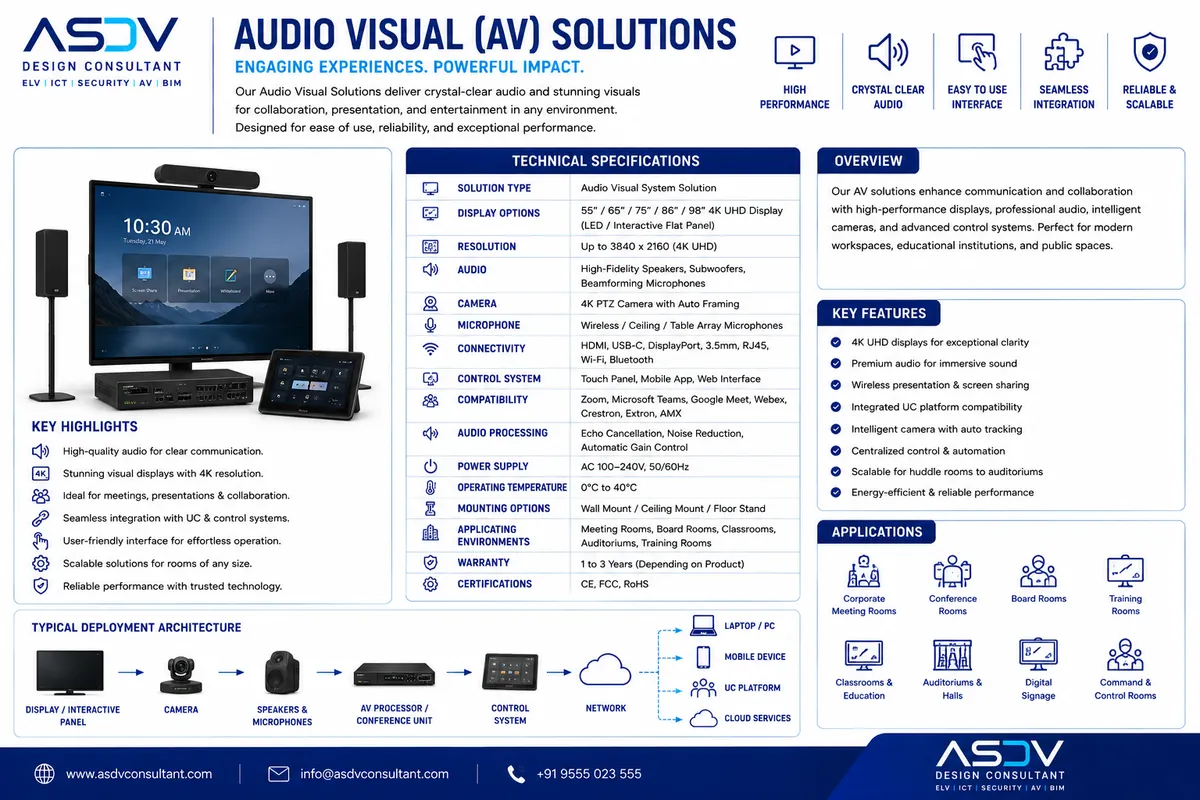
The whiteboard-and-marker era of meeting room ideation is giving way to interactive smart displays that combine the tactile, collaborative feel of a physical whiteboard with the infinite canvas, cloud persistence, and multi-user simultaneous editing of digital collaboration software. A team's brainstorm no longer disappears when the room is cleaned or gets erased before someone photographs it — it persists in the cloud, accessible from any device, editable by remote participants in real time.
Modern interactive displays run the UC platform's native application (Teams, Zoom, Webex whiteboard) directly on an embedded compute module, eliminating the need for a connected laptop for basic collaboration sessions — the display itself is the computer, the whiteboard, and the video conferencing endpoint.
Interactive Smart Display Size & Application Guide
| Display Size | Typical Room | Touch Points | Native Apps | Best Fit |
|---|---|---|---|---|
| 65"–75" | Huddle/small meeting room | 10–20 point multi-touch | Teams/Zoom whiteboard, annotation | Small team ideation, focus rooms |
| 85"–86" | Medium/large conference room | 20 point multi-touch | Full UC suite, digital whiteboarding | Standard collaboration room |
| 98" | Large conference/training room | 20+ point multi-touch | UC suite, multi-user split canvas | Training, workshops, design reviews |
| 105"+ | Boardroom/executive/town hall | 20+ point multi-touch | UC suite, executive dashboards | Statement collaboration walls |
Technical Design: Interactive Smart Display Integration
- Embedded OpenPluggable Specification (OPS) compute: Slide-in OPS compute modules running Windows or Android allow the display to function as a self-contained PC, removing dependency on a connected laptop for standard meetings
- Cloud whiteboard persistence: Native integration with Microsoft Whiteboard, Zoom Whiteboard, or Google Jamboard cloud services ensures every annotation session is automatically saved and accessible to all participants post-meeting, in-room or remote
- Multi-touch & pen input: Infrared or capacitive multi-touch (typically 20-point) combined with passive or active stylus input supports natural handwriting recognition and precise annotation, critical for design review and technical collaboration use cases
- Wireless casting integration: Native AirPlay/Miracast/Google Cast support alongside dedicated wireless presentation platforms (ClickShare, Solstice) allows any device to project onto the interactive canvas without cabling
- Mounting & power infrastructure: Motorized height-adjustable mounts (for accessibility compliance) and dedicated power/data drops are coordinated during architectural design to avoid unsightly retrofit conduit runs
- Device management: Centralized MDM (Microsoft Intune, Samsung Knox, or vendor-specific platforms) enables remote content pushing, firmware updates, and usage analytics across a fleet of interactive displays
Gesture & Voice-Native Collaboration Canvases
Interactive displays will extend beyond touch and stylus input to full gesture recognition and natural language voice commands — a team member across the room will be able to reorganize a digital whiteboard, generate a summary diagram from a spoken description, or pull a relevant document into the canvas purely by voice, without approaching the screen. AI co-creation will allow a rough sketch on the canvas to be automatically refined into a polished diagram or architectural rendering in real time as the team discusses it.